
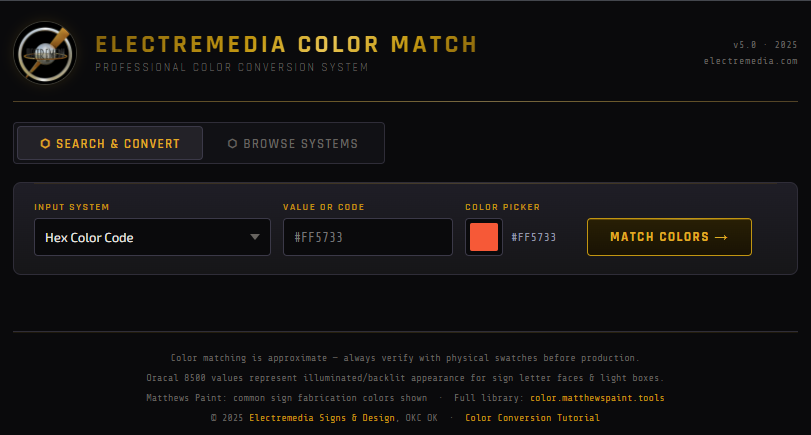
Try our Color Match Tool (beta testing)
For decades graphic designers, sign artists and more have come to this tutorial to convert Pantone to a vinyl color. Well, we have taken a giant leap forward and are testing this web app before launching the final version into app stores. This app will match any color to the other categories from inputs including Hex, RGB, CMYK, Pantone, Oracal 651, Oracal 8500, 3M Scotchcal Series 50, 3MiJ Air Release Series, Sherwin-Williams Paint, Matthews Paint and Benjamin Moore.
The paint color matching algorithm is being updated, and current results can be many shades off or worse. Not every color is available in every substrate, such as matching paint, vinyl and web hex colors. The goal of the tool is to bridge together as many products and color methods as possible in a singular source.
Please email kalen@electremedia.com for any comments or Bug Reports.
Thanks again for visiting, and enjoy!
Kalen Lake
Owner/Creative Director/Developer
Existing Tutorial: Using Illustrator to Determine the Pantone Color
I often have to use vinyl for one element of a sign or graphics project, but require digital printing another portion. For outdoor translucent vinyl we often use Oracal's 8500 series, and it's relatively easy to pick a color using their online color chart. But your digital printer will need an entirely different number to represent the same color as the vinyl. While this is an inherently difficult process to get exact, these 5 steps should help you give something your printer will be happy with.
Step One
Fire up Adobe Illustrator, and open your customer's artwork. I am using CS6, so your interface might look different from these images. Use the Eyedropper Tool and click on the color you want. Note how it goes into your color panel.

Step Two
Open the Color Guide Panel. Your color should be selected. Click the drop down arrow just under the x to close the panel, and open up the Color Guide Panel Options. Choose Edit Colors.
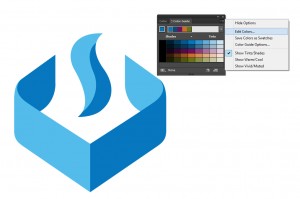
Step Three
Click the small icon to open up the color libraries you can choose from, indicated by the red arrow.
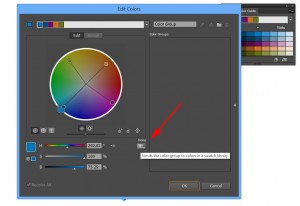
Step Four
Select the color types your printer is going to use, in this case I chose Pantone Coated.
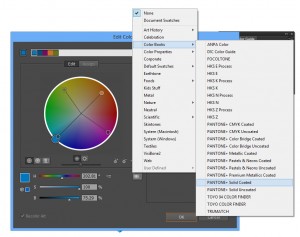
Step Five
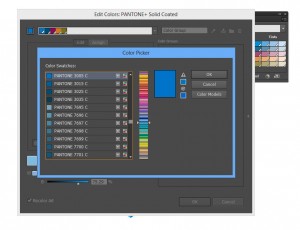
Click the color square at the very bottom left of the window, and your matching Pantone color is provided in the Color Picker Dialog. Simply write down the numbers and forward them on to your printer.
I hope these tips help you in some way.
Thanks for visiting Electremedia.